Settings
What each setting in Tvheadend Player does, and which ones are worth changing.
On this page
Open Settings at the bottom of the side menu. The defaults work for most setups; this page says what each setting changes, so you know which one to reach for.
General
- App language: Follow system uses the TV’s language. Pick another one to use the app in a language the TV isn’t set to.
- Clock format: Follow system, 12-hour (8:15 PM) or 24-hour (20:15).
- Channel numbers: on by default. Turn it off if your remote has no number keys, and the app stops showing them.
- Clear cache: deletes the channel logos and program pictures the app has saved, so it loads them again from the server. Use it after you changed logos in Tvheadend.
Connection
Your saved servers and accounts. Adding, switching and editing connections is under More than one server or account. Remove connection deletes a connection from this TV, with its recent channels, audio choices and saved pictures. Recordings stay on the server.
Channel groups
Which of your server’s channel tags show up in Channels and the Guide, next to All channels. Turn off the ones you don’t use; at least one group has to stay on. How to make tags is under Favorites: channel tags.
Playback
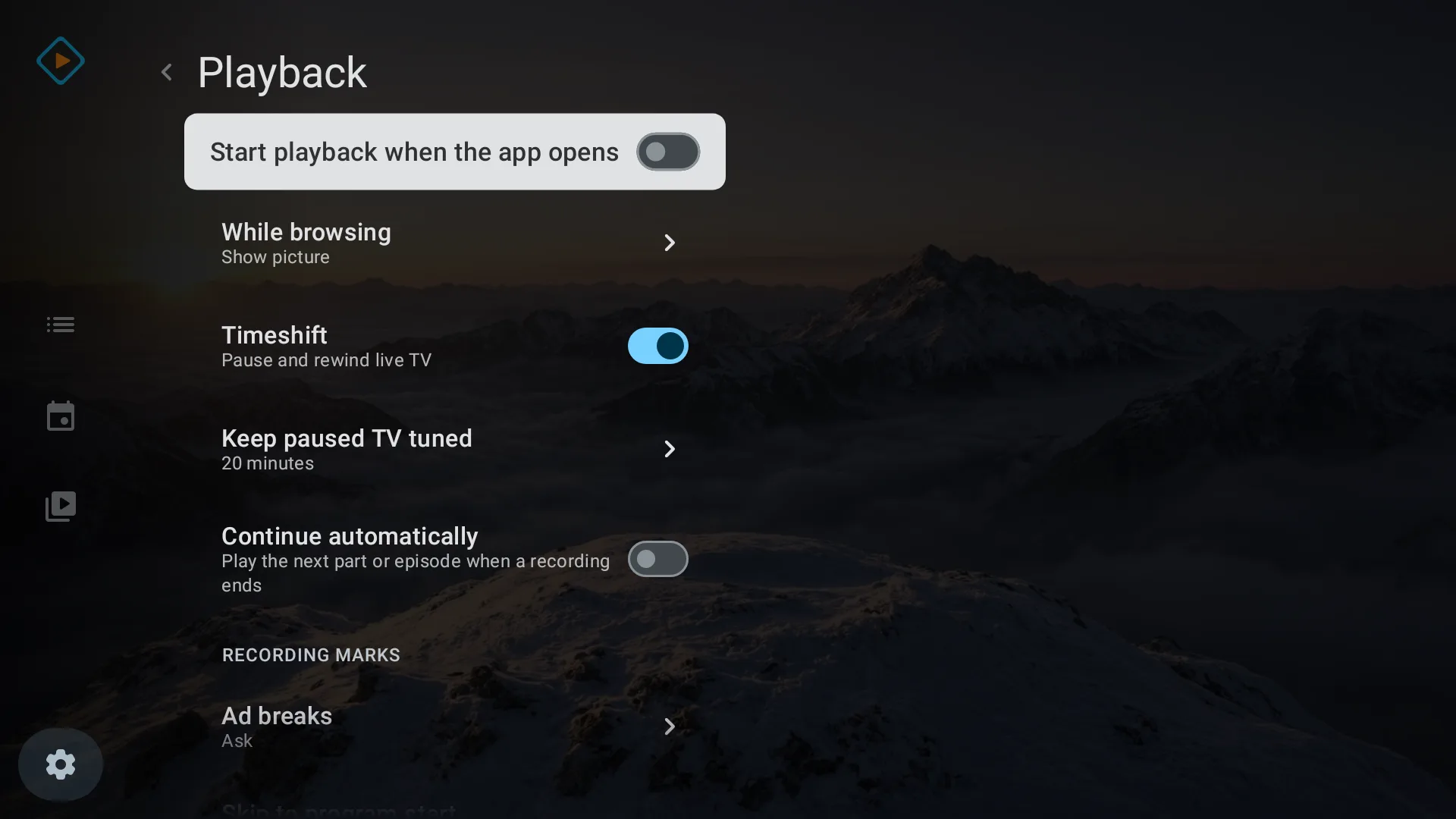
- Start playback when the app opens: off by default. When it’s on, the app plays the last channel when it starts fresh.
- While browsing: what happens to the channel you’re watching when you open Home, the Guide or another page. Show picture keeps it playing behind the menus, Sound only keeps the sound and hides the picture, and Stop stops it when you leave the player.
- Timeshift: on by default, so you can pause and rewind live TV. Your server has to allow it, see Pause and rewind: timeshift.
- Keep paused TV tuned: when you pause live TV and switch to another app, the channel stays tuned for this long, 20 minutes by default, so it continues where you paused. Meanwhile it keeps a tuner busy. It needs Timeshift.
- Continue automatically: off by default. When a recording ends, the app shows what you could watch next. With this on, it plays the next part or episode by itself after a 10-second countdown.
Recording marks
What the player does with ad breaks and cuts marked in a recording. Where the marks come from is under Ad breaks and cuts.
- Ad breaks: Ask (the default) shows a Skip button when a break starts, Skip automatically jumps over each break once, and Off plays them.
- Skip to program start: on by default. Shows a Skip button when a recording starts before the program does.
- Skip cuts: on by default. Skips parts marked as cuts; the file itself stays as it is.
- Skip lands: where playback continues after a skip: At the end, 2 s before the end or 5 s before the end.
Streaming
- Stream profile: how Tvheadend prepares the stream for this TV.
Server default leaves the choice to Tvheadend. Direct streaming is
Tvheadend’s
htspprofile, which sends the broadcast unchanged. Change it when a profile that converts the stream causes trouble, see When something doesn’t play. - Start-up buffer: how much the player buffers before a channel starts. Shorter starts faster; longer protects against dropouts. Automatic starts at half a second and waits longer on a server where channels dropped out right after they started.
Picture
- Display refresh rate: the refresh rate for the app’s screens. System default leaves it to the TV.
- Match content frame rate: whether the TV switches to the video’s frame rate, so a 25 or 50 fps broadcast plays at its own rate. Follow system uses the TV’s own setting and is the default from Android 12 on; older TVs start with Always. Only if seamless switches only when the screen doesn’t go dark, and Off never switches.
Experimental
- Tunneled playback: off by default. Sends video straight to the TV when its decoder supports it. If audio fails with it, the app stops using it until the next start and says so under the switch.
Audio & subtitles
- Audio language: Automatic (device language) by default. Pick up to three languages in order with Second audio language and Third audio language; the player takes the first one a program has.
- Audio format: Automatic, Prefer Dolby Digital (E-AC-3 and AC-3) or Prefer stereo (AAC and MPEG audio), always within your chosen language.
- Audio passthrough: on by default. Sends surround sound unchanged to a soundbar or receiver. Off, the TV decodes the sound itself.
- Audio description: off by default. When it’s on, the player prefers narrated tracks where a program has one.
- Subtitle language: Follow system caption settings by default, or a language to turn on whenever a program has subtitles in it.
You can switch audio and subtitles for the program you’re watching with the Audio and Captions keys or from the player’s controls, see The remote.
Recordings
This section shows up when there’s something in it:
- Recording profile, when your server has more than one: the Tvheadend recording profile the app uses when you record. See Recording profile.
- Recording space: how much space is left for recordings on the server.
Appliance
The optional companion app that makes Tvheadend Player act like the TV’s own tuner app. The appliance companion explains it.
About
- Version: the app’s version, which a bug report needs.
- What’s new: the changes in each version.
- Server: the name and version of the Tvheadend server you’re connected to.
- Licenses and Privacy policy.
View options outside Settings
Home, Channels, the Guide and Recordings each have their own View options:
- Home: which sections show, under Sections.
- Channels: Layout (List, Grid or Immersive), and for Grid and Immersive whether they show Program art and Channel names.
- Guide: Rows (Regular or Dense), Show program info at the top, and Genre colors.
- Recordings, under Browse: Group by (Folders, Channels, Genres or Flat), Sort and Show (all, unwatched, partially watched or watched).
Something missing or wrong on this page? Tell me on GitHub.